Contents |
|
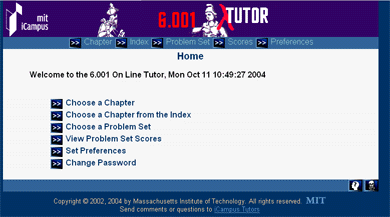
Using the tutor for self-studyThe login page for the iCampus 6.001 public tutor is located at http://icampustutor.csail.mit.edu/6.001-public Before you can log in, you must register for an account by clicking the “register here” link at the bottom of the login page. Once you have registered, by providing a name and email address, the system will mail you a password, which you can use to log in. Your answers to the problems will be saved between sessions so you can return repeatedly to continue your work, but iCampus cannot guarantee to maintain your answers indefinitely — we may have to periodically clean out the database. Once you’ve logged in, you’ll see a page with options like those shown at the right. You can
The small icons at the lower right are for showing some help with navigation and for logging out. |
|
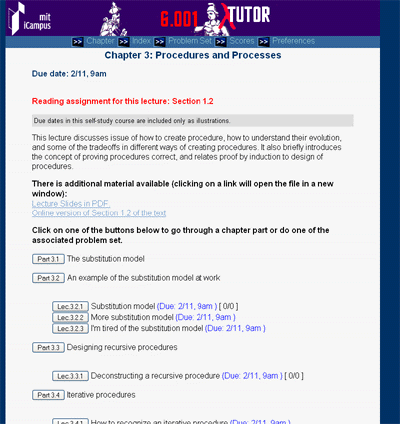
Selecting lecturesWhen you select a lecture, like the one shown on the right, you’ll see a due date (not meaningful for this self-study version of the course) and some reading assigments, which refer to sections in the textbook Structure and Interpretation of Computer Programs, by Abelson, Sussman, and Sussman. You can find the complete textbook online here. There are also PDF versions of the lecture slides and the complete lecture transcript. The buttons marked “Part …” allow you to listen to the individual lecture audio segments as described in “Listening to lectures” below. The buttons marked “Lec …” are short problems that you should try at the end of each segment to gauge your understanding. These problems are in addition to the problem sets that are described below in “Working on problem sets”. |
|
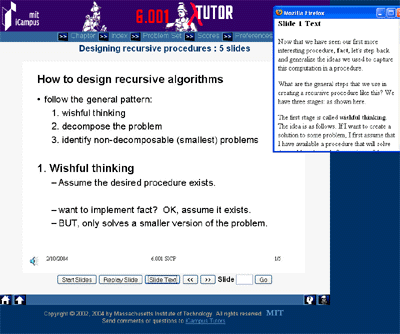
Listening to lecturesWhen you select a lecture segment to listen to, begin by pressing “start slides”. The lecture will appear as a sequence of slides with accompanying audio. The audio will be played using whatever player your computer defaults to for handling the audio file type — WAV or MP3, depending on how you set your preferences on the tutor system preference page. Pressing “Slide Text” brings up an additional browser window with the lecture transcript, as shown. You can replay a lecture slide, to move to the next slide or the previous slide, or go to a given numbered slide. You’ll need to press “start slides” when you start the lecture, before any of these navigation controls will work. |
|
Working on problemsIn addition to listening to lectures, you can use the tutor to work on problems, selected from the problems included with each lecture or the problems in a problem set. The problem show on the right is a simple fill-in. Note the buttons marked “Check”, “Save”, and “Submit” at the bottom of the page. You can use “Check” to check your answers as you fill them in, and the system will respond by showing either a green check (correct) or a red X (incorrect). You can change your answers as many times as you wish. Pressing “Save” saves your answers so you can log out and return later to continue your work. Pressing “Submit” submits your answers for grading. Once you have submitted your work, you can no longer change your answers. This is more useful for a course, than for self-study. In addition to fill-ins, there are multiple choice questions: for these there is no “Check” button. Other questions are more elaborate. For example, there are questions that ask you to write short programs, which the tutor will check by running them against test cases. To aid you in writing Scheme programs, the tutor supplies a Java applet that does automatic indentation and parentheses checking. This applet can take a long time to load on slow network connections, and you can use Set Preferences to specify whether or not to use the applet. |
|
Using the tutor for teaching a classiCampus invites faculty to use this system for teaching this material in their classes. We will set up a special login page for your class to use, and make sure that your student accounts and associated data persists for the duration of the class. With the special (non-public) instance of the tutor program, you will be able to set appropriate text messages for the login pages and lecture pages. You can also change the due dates of the material, and change the selection of homework problems. You will have some additional administrative capabilities. For example, you’ll be able to generate reports of how your students have performed on the homework problems. To arrange for a special instance of the tutor program for your class, first familiarize yourself with how the system works as above and then contact the iCampus Outreach Coordinator. |